Drawing
Draw antialiased lines, shapes, paths and gradients, and flood fill areas.
Jimp can draw vector shapes on an image, like a small canvas: lines, rectangles, ellipses, polygons and SVG paths, filled or outlined with a color or a gradient, plus a paint-bucket flood fill.
The methods come from @jimp/plugin-draw, which is included in jimp. Every edge is antialiased from the exact area each pixel covers, so shapes look smooth at any size.
Draw a straight, antialiased line in a color or gradient.
Rendering…drawRect()Draw a filled or outlined rectangle, optionally with rounded corners.
Rendering…drawEllipse()Draw a filled or outlined ellipse or circle around a center point.
Rendering…drawPolygon()Draw a polygon or polyline through a list of points.
Rendering…drawPath()Draw SVG path data: lines, curves and arcs, filled or stroked.
Rendering…floodFill()Fill the area connected to a point, like a paint bucket.
render()Lay out boxes, text and images like flexbox and draw them.
Drawing a shape
Each drawing method takes one options object and draws on the image in place, so calls chain:
import { Jimp } from "jimp";
const image = new Jimp({ width: 300, height: 200, color: "white" });
image  .drawRect({ x: 20, y: 20, w: 120, h: 80, radius: 12, fill: "#a8dadc" })  .drawEllipse({    cx: 220,    cy: 60,    rx: 40,    ry: 40,    stroke: "#1d3557",    strokeWidth: 4,  })  .drawLine({    x1: 20,    y1: 150,    x2: 280,    y2: 180,    color: "#e63946",    width: 6,    cap: "round",  })  .drawPath({ path: "M 150 190 Q 200 110 250 190 Z", fill: "gold" });
await image.write("shapes.png");| Method | Draws |
|---|---|
drawLine |
A straight line between two points |
drawRect |
A rectangle, with optional rounded corners |
drawEllipse |
An ellipse or circle around a center |
drawPolygon |
A polygon or polyline through a list of points |
drawPath |
SVG path data or a list of path commands |
floodFill |
Every connected pixel of a similar color, from a point |
Try them on the photo. The point and rectangle options are picked by clicking or dragging on the image:
image.drawPolygon({Docs →Draw a polygon or, with closed off, a polyline through a list of points.
import { Jimp } from "jimp"; const image = await Jimp.read("dice.png"); // Click a method above to add it here await image.write("output.png");
Coordinates and pixels
Coordinates are in pixels from the top-left corner of the image, and can be fractions.
Pixel (x, y) covers the square from (x, y) to (x + 1, y + 1), so a rectangle at { x: 10, y: 10, w: 20, h: 20 } fills pixels 10 to 29 exactly, with crisp edges.
Lines and outlines are centered on the path they follow. A 1-pixel line along y: 50 covers half of row 49 and half of row 50, so both rows come out half-strength. Add 0.5 to the coordinates of odd-width lines to put them through the middle of a row:
image.drawLine({ x1: 0, y1: 50.5, x2: 300, y2: 50.5, color: "black" }); // one crisp rowFill and stroke
drawRect, drawEllipse, drawPolygon and drawPath take a fill, a stroke or both:
fillpaints the inside of the shape.strokepaints its outline,strokeWidthpixels wide (default1), centered on the edge: half inside the shape and half outside.drawRectalso takesstrokeAlign: "inside"to keep the outline within the rectangle like a CSS border, or"outside"to put it all around.- With both, the fill is drawn first and the stroke on top, as in SVG.
- With neither, the shape is filled black.
drawLine is always a stroke, so it takes color and width instead. floodFill takes a color.
Colors and gradients
Every fill, stroke and color option takes a paint: a color or a gradient. The type is exported from jimp as Paint.
Colors
A color can be:
| Form | Example | Notes |
|---|---|---|
| A hex number | 0xff0000ff |
0xRRGGBBAA, the same as everywhere else in Jimp. Used as pixel values. |
| A CSS color | "red", "#ff000080", "rgba(255, 0, 0, 0.5)" |
Any CSS color, including color(display-p3 1 0 0). |
| An object | { r: 255, g: 0, b: 0, a: 128 } |
Pixel values from 0 to 255. a defaults to 255; values are clamped and rounded. |
A CSS color string that can’t be parsed throws Invalid color "notacolor" (with your string in the quotes) before anything is drawn.
CSS colors are sRGB, as in a browser. On an image with a color profile such as Display P3, they’re converted to the image’s color space, so "#ff0000" looks the same red on any image. Hex numbers and { r, g, b, a } objects are pixel values in the image’s own space and aren’t converted.
Gradients
A gradient is an object with a type and a list of color stops. Its coordinates are in image pixels, like canvas gradients, not relative to the shape it fills:
// From (x1, y1) to (x2, y2)image.drawRect({  x: 0,  y: 0,  w: 300,  h: 200,  fill: {    type: "linear",    x1: 0,    y1: 0,    x2: 0,    y2: 200,    stops: [      { offset: 0, color: "#a8dadc" },      { offset: 1, color: "#f1faee" },    ],  },});
// From the center (cx, cy) out to radius rimage.drawEllipse({ cx: 150, cy: 100, rx: 50, ry: 50, fill: { type: "radial", cx: 150, cy: 100, r: 50, stops: [ { offset: 0, color: "#ffd166" }, { offset: 1, color: "rgba(255, 209, 102, 0)" }, ], },});| Field | Type | Description |
|---|---|---|
type |
"linear" or "radial" |
The kind of gradient. |
x1, y1, x2, y2 |
number |
Linear only: the start and end of the gradient line. |
cx, cy, r |
number |
Radial only: the center and the radius where the gradient reaches offset 1. r must be 0 or more. |
stops |
({ offset: number; color: Color } | Color)[] |
At least one stop. offset goes from 0 (the start) to 1 (the end). Bare colors are spread out evenly, so ["red", "blue"] is the same as stops at 0 and 1. |
dither |
boolean |
Add noise smaller than one level so the gradient doesn’t band. Defaults to false. See Banding. |
Stops work like CSS gradient stops:
- Before the first stop and after the last, the gradient is that stop’s color.
- Offsets are clamped to 0–1, and a stop with a smaller offset than the one before it is moved up to it. Two stops at the same offset make a hard edge.
- Colors are blended in the image’s color space as it’s stored (gamma encoded, as CSS does by default), with premultiplied alpha, so fading to
"transparent"fades the color out instead of through gray. - A gradient with no length (the same start and end, or
r: 0) is its last stop’s color, as in SVG.
Gradients work everywhere a color does, including strokes, drawLine and floodFill. gradientMap and render backgrounds take the same stops.
Banding
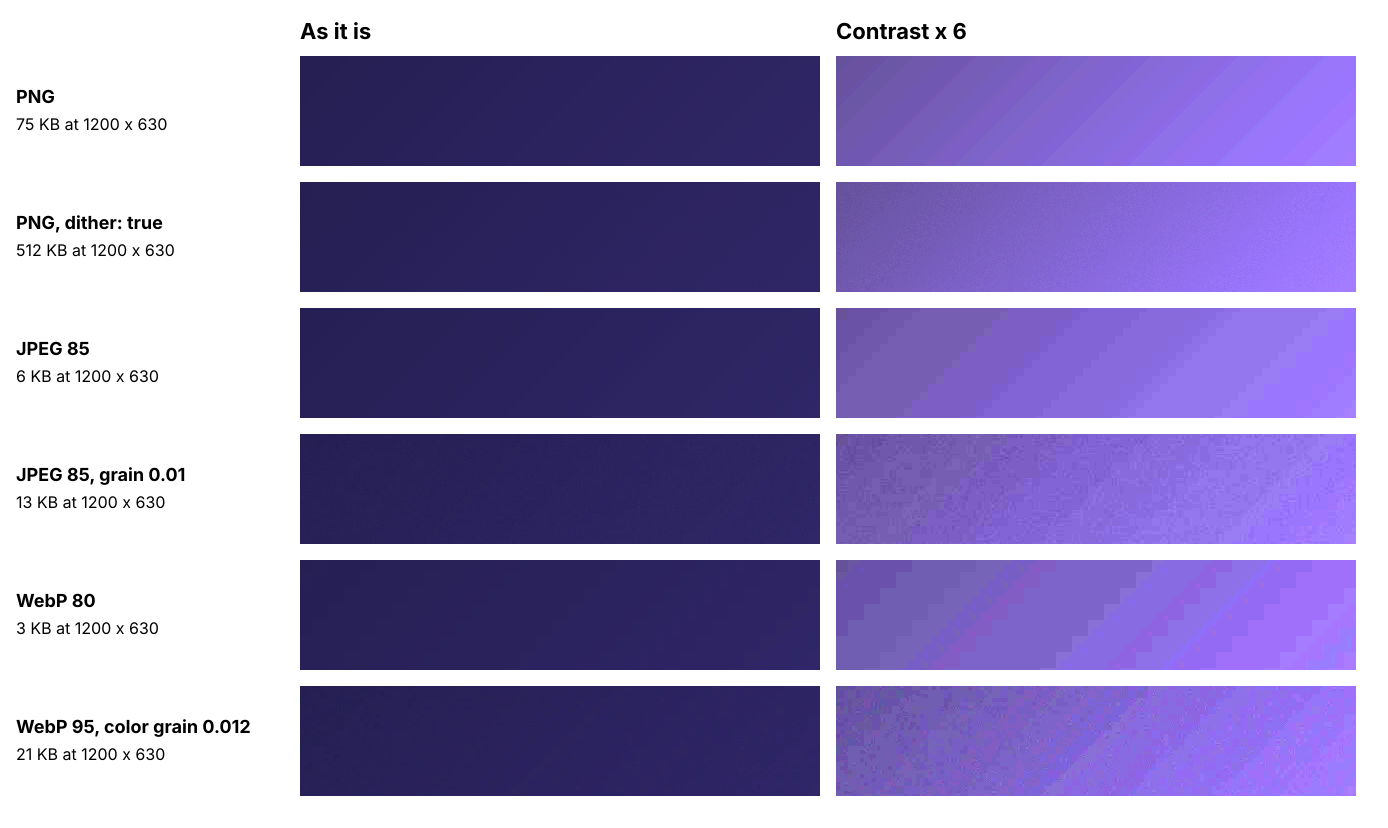
Images store 256 levels per channel, so a wide gradient between two close colors has to step from level to level, and each step shows as a flat band. A 1200-pixel card going from #1b1840 to #3a2d7a has bands about 40 pixels wide.
dither: true fixes that while the gradient is drawn: before each pixel is rounded to a whole level, it adds noise of less than half a level, so a pixel 30% of the way from one level to the next is rounded up 30% of the time. The bands average out to the smooth gradient. The noise is the same every time, and colors that are already whole levels, like the area before the first stop, don’t change.
image.drawRect({ x: 0, y: 0, w: 1200, h: 630, fill: { type: "linear", x1: 0, y1: 0, x2: 1200, y2: 630, stops: [ { offset: 0, color: "#1b1840" }, { offset: 1, color: "#3a2d7a" }, ], dither: true, },});It’s off by default for two reasons:
- PNG size. A smooth gradient compresses very well as PNG, and noise doesn’t. The 1200 × 630 card below goes from 75 KB to 512 KB.
- Lossy formats. JPEG and WebP compression smooths away noise this small, and adds bands of its own. For those, add a little
grainto the finished image instead:amount: 0.01for JPEG, and colored grain at a high quality for WebP.
Gradients in @jimp/layout take the same dither option.
Antialiasing
Jimp doesn’t sample pixels to antialias. For each pixel it works out exactly how much of its area is inside the shape, from the edges that cross it, with the same method as FreeType and font-rs. That fraction, the coverage, sets how strongly the paint is drawn on the pixel:
- A pixel completely inside the shape gets the paint at full strength.
- A pixel half covered, such as the edge of a rectangle at
x: 10.5, gets it at half strength. - A pixel outside isn’t touched.
This makes shapes on whole-pixel coordinates perfectly crisp, thin lines keep their weight, and small round dots look round. Curves and arcs are split into straight segments within 0.1 pixels of the true curve before they’re measured.
Strokes
Outlines take these options, which work like SVG’s stroke properties:
| Option | Values | Default | What it does |
|---|---|---|---|
strokeWidth |
number (width for drawLine) |
1 |
The width in pixels, centered on the path. |
cap |
"butt", "round", "square" |
"butt" |
The ends of open lines. "butt" stops at the end point, "round" adds a half circle and "square" adds half the width. |
join |
"miter", "round", "bevel" |
"miter" |
The corners. "miter" is sharp, "round" is rounded and "bevel" is cut off. |
miterLimit |
number, 1 or more |
10 |
A miter longer than miterLimit times the width is beveled instead, so very sharp corners don’t spike. |
cap applies to drawLine, drawPolygon with closed: false, and open subpaths in drawPath. join and miterLimit apply to every shape with corners: rectangles, polygons and paths.
A line or subpath with a single point draws a dot with "round" or "square" caps, as in SVG.
Fill rules
When a shape’s outline crosses itself, or one subpath sits inside another, fillRule decides which parts are inside. drawPolygon and drawPath take it:
"nonzero"(the default): a point is inside when the outlines wind around it a non-zero number of times, counting clockwise as +1 and counterclockwise as −1. Overlapping shapes drawn the same way round merge, and a hole has to be drawn the other way round."evenodd": a point is inside when a line from it to the outside crosses an odd number of edges. Every nested outline is a hole, whichever way it’s drawn.
const star = [  [50, 5],  [79, 95],  [2, 40],  [98, 40],  [21, 95],] as [number, number][];
image.drawPolygon({ points: star, fill: "gold" }); // filled middleimage.drawPolygon({ points: star, fill: "gold", fillRule: "evenodd" }); // hollow middle
Strokes are always filled with "nonzero", so an outline that crosses itself is still solid.
Clipping
Shapes can be anywhere: partly or entirely outside the image, or with huge coordinates. Anything outside the image is clipped, and nothing outside the shape is touched. Out-of-bounds coordinates never throw, including a flood fill that starts outside the image, which fills nothing.
What does throw is invalid input: options are checked with zod, so NaN, Infinity, negative sizes or widths, and a miterLimit below 1 throw a ZodError naming the option. See Errors and validation.
Compositing
Drawing blends the paint over the pixels already there with source-over compositing and straight (not premultiplied) alpha, the same maths as composite. For each pixel, the paint’s alpha is multiplied by the coverage:
a = paintAlpha × coverage (0 to 1)under = imageAlpha × (1 − a)out = a + underrgb = (paintRGB × a + imageRGB × under) / outalpha = out × 255So an opaque paint on a fully covered pixel replaces it, a 50% paint mixes half and half, and drawing on a transparent image keeps the paint’s own color: "rgba(255, 0, 0, 0.5)" on a transparent image gives 0xff000080, red at alpha 128, not a darker red.
Each call draws its shapes in one pass, so overlapping parts of one shape, such as the crossing lines of a polygon’s outline, aren’t blended twice.
Performance
Drawing is pure JavaScript, with typed arrays and no allocation per pixel. Some timings from an M-series laptop:
| Task | Time |
|---|---|
| 1000 random lines on 1920 × 1080, 1 / 3 / 10 px wide | 50 / 65 / 130 ms |
| 100 filled and stroked 300 × 200 ellipses on 1080p | 258 ms |
| A full-frame 1080p linear gradient rectangle | 43 ms |
The same with dither: true |
about 45 ms more |
| Flood filling a whole 1080p image | 26 ms |
The time depends mostly on the area a shape covers and the number of edges in it. The plugin adds about 7 KB gzipped to the browser bundle.
Drawing from plugins
The rasterizer behind the drawing methods is exported from @jimp/plugin-draw, so your own plugins can draw their own shapes, such as glyph outlines or chart marks, with the same antialiasing, paints and compositing.
npm install @jimp/plugin-draw| Export | What it does |
|---|---|
parseSvgPath |
Parses SVG path data into absolute M, L, Q, C and Z commands (H, V, S, T and A are converted). |
flattenPath |
Turns a path into polylines, splitting curves into lines within tolerance pixels (default 0.1), after an optional transform. |
strokePolylines |
Turns polylines into the outlines of their strokes, with width, cap, join, miterLimit and tolerance. Fill the result with "nonzero". |
rasterize |
Works out each pixel’s coverage of polylines, row by row, with a fill rule, and passes each row to a callback. |
fillPolylines |
Fills polylines on an image with a paint. |
fillPath |
Flattens and fills a path on an image, with fillRule, transform and tolerance. |
strokePath |
Flattens and strokes a path on an image, with width, cap, join, miterLimit and transform. |
drawShape |
Fills and then strokes polylines the way the drawing methods do, with fill, stroke, strokeWidth, cap, join, miterLimit and fillRule. |
PaintSchema |
The zod schema of a paint, to validate your own options that take a color or gradient. |
The image argument only needs bitmap and iccProfile, so these work on any Jimp image, including one from a custom Jimp.
Paths and polylines
A path is SVG path data or a list of commands. The commands are the same objects opentype.js uses, so a glyph’s path.commands can be drawn as they are:
type PathCommand =  | { type: "M"; x: number; y: number }  | { type: "L"; x: number; y: number }  | { type: "Q"; x1: number; y1: number; x: number; y: number }  | { type: "C"; x1: number; y1: number; x2: number; y2: number; x: number; y: number }  | { type: "Z" };
// What flattenPath returns: x and y of each vertex, one after the otherinterface Polyline {  points: ArrayLike<number>; // [x0, y0, x1, y1, ...]  closed: boolean;}
A transform is a [a, b, c, d, e, f] matrix in the same order as CSS’s matrix() and Jimp’s affine: each point (x, y) moves to (a·x + c·y + e, b·x + d·y + f).
Fill and stroke a path
import { fillPath, strokePath } from "@jimp/plugin-draw";
// A heart, half size, moved to (25, 25)fillPath(  image,  "M 10 30 A 20 20 0 0 1 50 30 A 20 20 0 0 1 90 30 Q 90 60 50 90 Q 10 60 10 30 Z",  "crimson",  { transform: [0.5, 0, 0, 0.5, 25, 25] },);
strokePath(image, "M 10 80 Q 50 10 90 80", "#1d3557", { width: 6, cap: "round" });
To draw a glyph from opentype.js, flip it, because font units have y pointing up:
const glyph = font.charToGlyph("g");const scale = 48 / font.unitsPerEm;
fillPath(image, glyph.path.commands, "black", {  transform: [scale, 0, 0, -scale, x, baseline],});
Fill many shapes as one
To fill several shapes in one pass, such as every glyph in a line of text, flatten them all and call fillPolylines once. Where their edges overlap, the coverage is added up before it’s drawn, so shared edges blend correctly instead of being drawn twice:
import { fillPolylines, flattenPath } from "@jimp/plugin-draw";
fillPolylines(  image,  glyphs.flatMap((glyph) => flattenPath(glyph.commands, { transform: glyph.transform })),  "black",);
Fill and stroke like the methods
drawShape is what the drawing methods call: it fills polylines, then strokes them, and fills black when there’s neither. Both paints are resolved first, so an invalid stroke color throws without leaving the fill drawn:
import { drawShape, flattenPath } from "@jimp/plugin-draw";
drawShape(image, flattenPath("M 5 5 L 30 5 L 5 30 Z"), {  fill: "white",  stroke: "black",  strokeWidth: 2,  join: "round",});
Coverage without drawing
rasterize gives you each pixel’s coverage instead of drawing it, for masks and custom blending. The coverage array is reused for every row, so copy what you need:
import { flattenPath, rasterize, strokePolylines } from "@jimp/plugin-draw";
const width = 100;const height = 100;const mask = new Float32Array(width * height);const outline = strokePolylines(flattenPath("M 10 10 L 90 90"), { width: 8, cap: "round" });
rasterize(outline, { width, height, fillRule: "nonzero" }, (y, x0, x1, coverage) => {  mask.set(coverage.subarray(x0, x1), y * width + x0);});
Edges outside 0..width and 0..height are clipped, as with the methods.
Validate a paint option
Use PaintSchema in your own options schema so users can pass the same colors and gradients as the drawing methods:
import { PaintSchema } from "@jimp/plugin-draw";import { z } from "zod";
const HighlightOptionsSchema = z.object({ color: PaintSchema, width: z.number().min(0).optional(),});See also
- The method pages:
drawLine,drawRect,drawEllipse,drawPolygon,drawPathandfloodFill - Compositing: layer whole images with
composite,blitandmask - Colors and pixels: color numbers, alpha and reading pixels
- Color spaces: how CSS colors are converted on Display P3 images
- Writing plugins: build your own methods on top of the rasterizer