palette()
Extract an image's main colors, most common first, with how much each covers.
palette returns the main colors of the image, most common first, with the share of the image each one covers. It doesn’t change the image.
Use it to theme something after a picture: a background and an accent color for a card, a gradient behind a cover, or swatches to show next to a photo.
For just the top color, use dominantColor.
Signature
image.palette( count: number, options?: { sampleSize?: number },): { color: number; weight: number }[]palette returns up to count colors, sorted by weight, largest first:
coloris an opaque RGBA hex number such as0x1b2a4eff, the same formgetPixelColorreturns, so you can pass it to any method that takes a color.weightis the share of the image the color covers, from0to1. The weights add up to1.
There are fewer than count colors if the image has fewer, and none, an empty array, if it’s fully transparent.
The result type is exported as PaletteColor[], and the options type as PaletteOptions, from @jimp/plugin-quantize.
Parameters
| Parameter | Type | Default | Description |
|---|---|---|---|
count |
number |
required | The most colors to return, a whole number from 1 to 256. |
options |
object |
{} |
See below. |
Options
| Option | Type | Default | Description |
|---|---|---|---|
sampleSize |
number |
10000 |
The most pixels to look at, at least 1. Larger images are sampled on an even grid. Pass image.width * image.height to look at every pixel. |
Example
import { Jimp } from "jimp";
const cover = await Jimp.read("album.jpg");
cover.palette(3);// [//   { color: 0x1b2a4eff, weight: 0.62 },//   { color: 0xe8c07aff, weight: 0.25 },//   { color: 0xf4f1eaff, weight: 0.13 },// ]
A background and an accent for an Open Graph card
Take the largest color for the card’s background and the next for an accent, such as the badge behind a label. Ask for a few more colors than you use: with only two clusters, an image of several colors is split in two and each color is an average of very different ones.
/** @jsxImportSource @jimp/layout */import { Jimp } from "jimp";import { loadTTF } from "jimp/load-ttf";import { Box, Image, Text, render } from "@jimp/layout";
const bold = await loadTTF("Inter-Bold.otf");
export async function albumCard(album: { title: string; cover: string }) {  const cover = await Jimp.read(album.cover);  const [background, accent] = cover.palette(5);
  return render(    <Box      direction="row"      align="center"      gap={56}      padding={64}      background={background?.color ?? 0x222222ff}      font={bold}      color="white"    >      <Image src={cover} width={502} height={502} radius={16} />      <Box gap={24} grow={1}>        <Text          fontSize={28}          padding={[6, 16]}          radius={999}          alignSelf="start"          background={accent?.color ?? 0x555555ff}        >          NOW PLAYING        </Text>        <Text fontSize={64}>{album.title}</Text>      </Box>    </Box>,    { width: 1200, height: 630, Jimp },  );}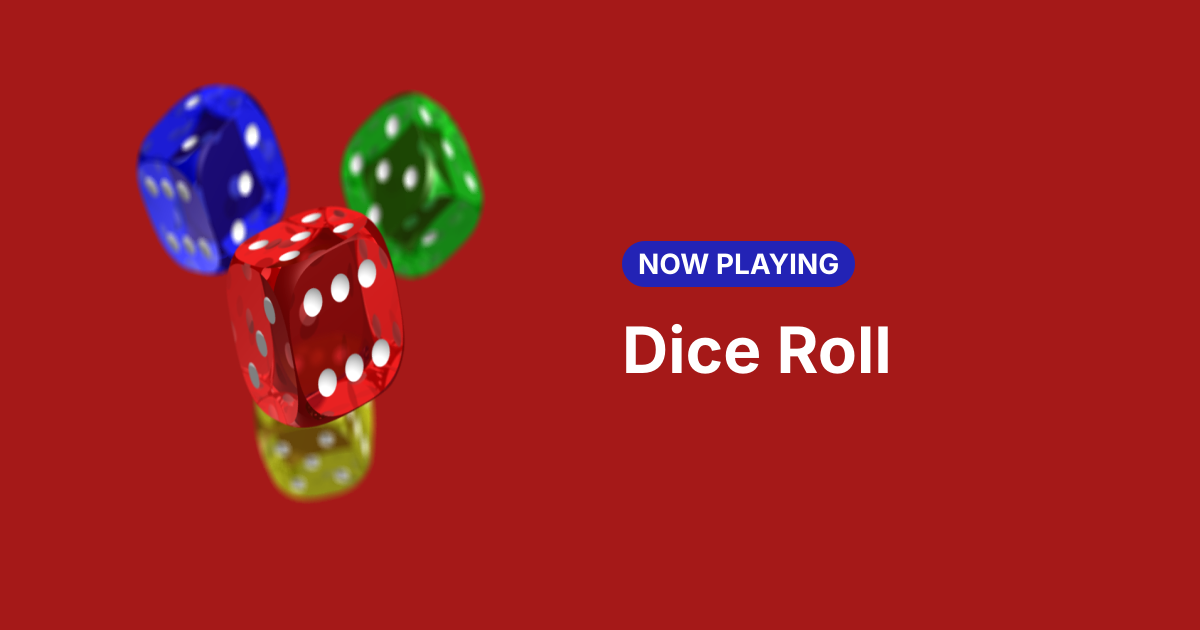
The fallbacks cover a fully transparent cover, which has no colors, and a single-color one, which has no second color.
The dominantColor page shows how to pick black or white text to go on a color.
A gradient from the top two colors
const [first, second = first] = cover.palette(5);
<Box  background={{    type: "linear",    angle: 135,    stops: [first!.color, second!.color],  }}/>;
Swatches
Draw the palette as a strip of swatches, each as wide as the share of the image it covers:
import { Jimp } from "jimp";
const photo = await Jimp.read("photo.jpg");const strip = new Jimp({ width: 600, height: 40 });
let x = 0;
for (const { color, weight } of photo.palette(6)) {  const w = Math.round(weight * 600);
  strip.drawRect({ x, y: 0, w, h: 40, fill: color });  x += w;}
await strip.write("swatches.png");
Notes
- Doesn’t change the image.
paletteonly reads the pixels, so it can’t be used inapply,@jimp/serveredits or@jimp/workertasks, which only take methods that change the image. Call it on the image you get back instead. - How it works. The image’s colors are grouped into
countclusters with Xiaolin Wu’s quantizer from image-q, the same onequantizeuses by default. Each color is the mean of the pixels in its cluster, so it’s usually close to the image’s pixels rather than exactly one of them. Similar shades share a cluster. With a smallcount, distinct colors can share one too and average into a muddier color, so ask for a few more colors than you need; with a largecount, big areas of color are split into a few shades before small, distinct colors get their own. - Transparency. Fully transparent pixels are skipped, and partially transparent ones count by their alpha, both in the weights and in the colors: a pixel at 50% alpha counts half as much as an opaque one. The colors are always opaque (
ais255). A logo on a transparent background gives the logo’s colors. - Speed. Images with more pixels than
sampleSizeare sampled on an even grid, so the time doesn’t grow with the image: about 10 ms in Node.js, whether the image is 100 × 100 or 10000 × 800. Reading the image takes longer than that. A lowersampleSizeis a little faster, and can miss small details, so a color that covers only a few pixels may not show up. - Color space. The colors are in the image’s color space, like the values
getPixelColorreturns. For an image in Display P3, calltoColorSpace("srgb")first if you need sRGB colors, for example to use in CSS. - Errors. A
countthat isn’t a whole number from1to256throws aZodError(for examplecount must be at least 1), and so does asampleSizebelow1(sampleSize must be at least 1). - Added in 2.2.