gradientMap recolors an image by brightness: each pixel is replaced with the color at its luminance along a gradient, so the darkest pixels get the first color and the lightest the last.
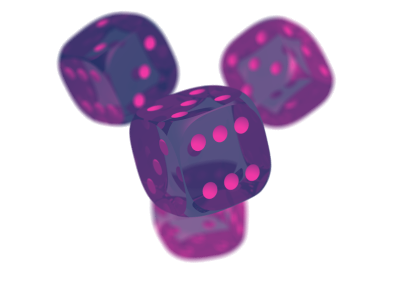
With two colors it makes a duotone, the bold two-color look often used for posters and Open Graph images.
Signature
image.gradientMap(stops: GradientStops): thisimage.gradientMap(options: { stops: GradientStops; amount?: number }): thisgradientMap changes the image in place and returns it, so you can chain more calls after it.
Parameters
| Parameter | Type | Default | Description |
|---|---|---|---|
stops |
GradientStops |
The colors from the darkest pixels to the lightest: colors, spread out evenly, or { offset, color } stops with offsets from 0 to 1. |
|
amount |
number |
1 |
How much of the gradient map to apply, from 0 (the original image) to 1, like sepia(amount). |
The stops are the same ones @jimp/plugin-draw gradients and render backgrounds take.
A color can be a CSS color string, a hex number like 0x1e3264ff, or { r, g, b, a }.
Example
A duotone is a gradient map with two colors, one for the shadows and one for the highlights:
import { Jimp } from "jimp";
const image = await Jimp.read("photo.jpg");
image.gradientMap(["#1e3264", "#f037a5"]);
await image.write("photo-duotone.jpg");
More colors
Add colors in between for the midtones. Here shadows go black, midtones red and highlights pale yellow:
image.gradientMap(["#000000", "#d9381e", "#ffe08a"]);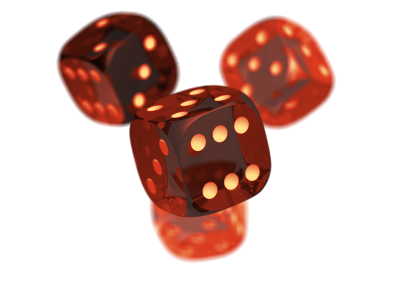
Placing the colors
Give stops an offset to choose where along the tones each color goes.
Tones darker than the first stop get its color, and tones lighter than the last get the last’s, so stops at 0.3 and 0.7 give a higher contrast duotone:
image.gradientMap([ { offset: 0.3, color: "#0b3d2e" }, { offset: 0.7, color: "#c6f432" },]);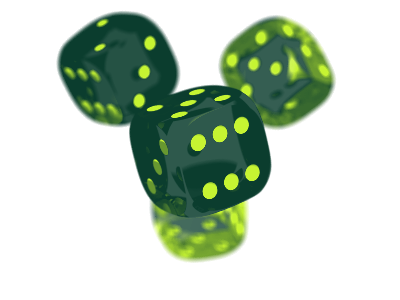
A lighter touch
Pass amount to blend the gradient map with the original colors:
image.gradientMap({ stops: ["#1e3264", "#f037a5"], amount: 0.5 });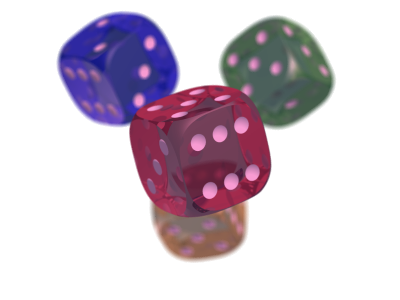
In a list of edits
Like other methods, gradientMap works in apply, @jimp/worker and the image server, where it’s one of the edits allowed by default:
image.apply([ ["cover", { w: 1200, h: 630 }], ["gradientMap", { stops: ["#1e3264", "#f037a5"] }],]);Try it
Pick the shadow and highlight colors, and turn on midtone for a third color. Hold the compare button to see the original.
image.gradientMap(["#1e3264", "#f037a5"])Map each pixel's luminance to a gradient: shadows get the first color, highlights the last. Two colors make a duotone.
import { Jimp } from "jimp"; const image = await Jimp.read("dice.png"); // Change an option to run it await image.write("output.png");
Notes
- Where a pixel lands on the gradient. A pixel’s position is the luminance
greyscalegives it,0.2126 × R + 0.7152 × G + 0.0722 × Brounded, divided by255. SogradientMapgives the same result on an image and on its greyscale version, and two colors with the same luminance get the same gradient color. - How colors are mixed. Colors between stops are interpolated in the image’s color space as it’s stored (gamma encoded, not linear light), with premultiplied alpha. That’s how CSS gradients and
@jimp/plugin-drawgradients mix colors too, so a black to white ramp maps to the same colors as drawing the gradient. - Color spaces. CSS colors are converted to the image’s color space, like everywhere else in Jimp. On a Display P3 image,
"#ff0000"is sRGB red, not the most saturated P3 red. - Alpha. Each pixel keeps its alpha, multiplied by the alpha of its gradient color. With opaque stops, transparency is unchanged; a transparent stop makes the tones around it transparent.
amountmixes each channel, alpha included, between the original and the mapped pixel. Values outside0–1are clamped.- Errors. An invalid color throws, e.g.
Invalid color "notacolor", before any pixel changes. An empty list of stops throws aZodError. - Added in 2.2.